NFL DFS Optimizer for DraftKings & FanDuel
Build Classic or Showdown lineups, set player exposures, and export a file for your selected slate. This guide starts with a small Classic build, then shows how to add rules without losing track of what they do.
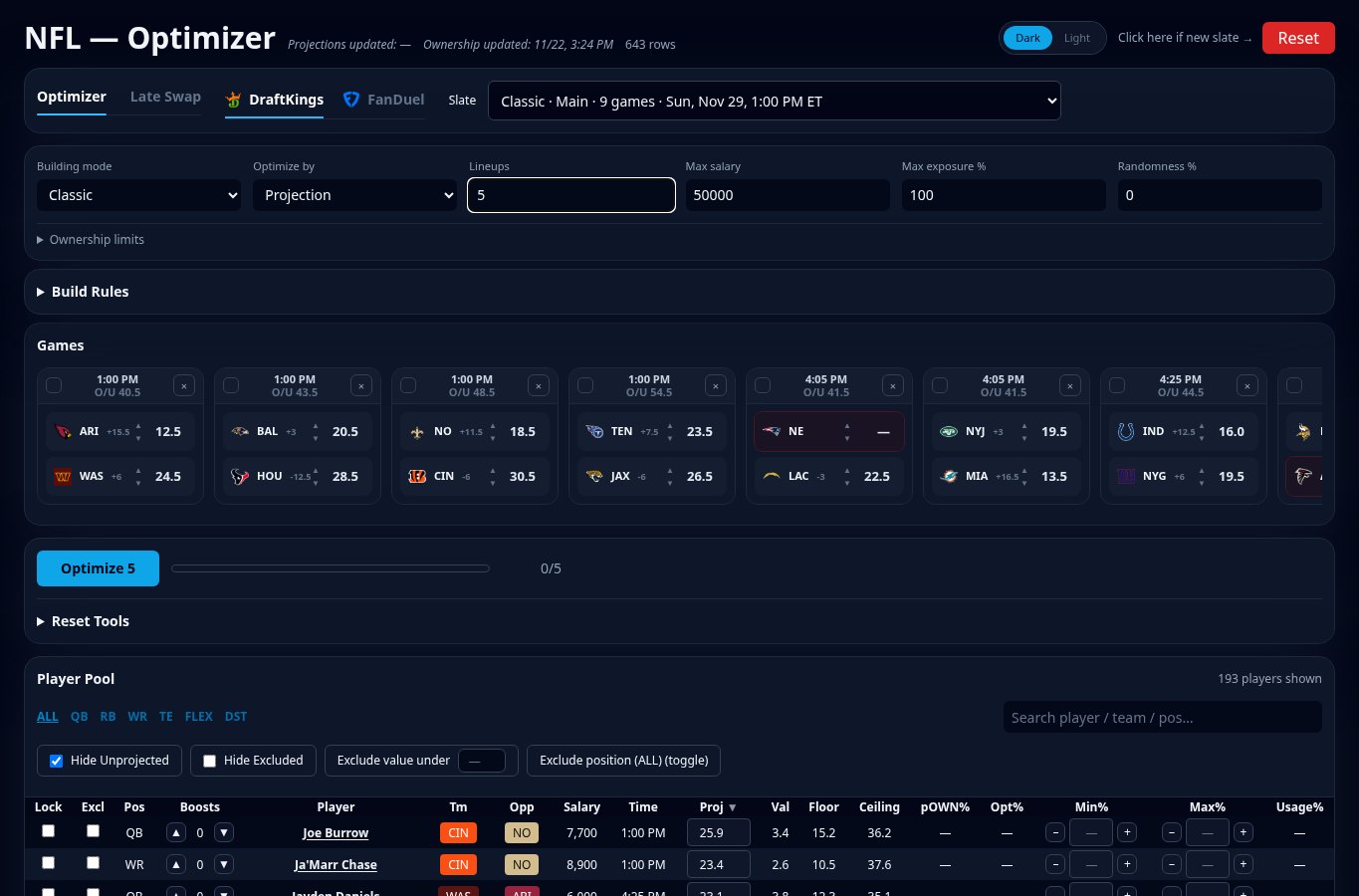
1. Start with a small build
- Choose the site and slate. Confirm the games and player pool. Use the label and start time rather than assuming the first option is the slate you want.
- Leave Building mode on Classic. Start with Projection as the objective, request five lineups, and leave randomness at zero for the first check. A small first build makes rule problems easier to spot.
- Review the pool. Check injury tags, missing projections, locks and exclusions. A locked player is a lineup requirement; exclude a player you do not want the builder to use.
- Add one stack rule, if you want one. Keep the rest of the rules simple until the initial build succeeds.
- Build, inspect, then expand. Look at the lineups and exposure panel. If the structure is what you intended, increase the lineup count and add the rest of your limits.
Changing Optimize by to ownership changes the objective; it does not set an ownership ceiling. If you want to keep optimizing projection while limiting chalk, use the ownership limits or ownership player-count rules instead.
If the first build fails, check locks, exclusions and the salary limit before adding randomness or changing projections. A scoring adjustment cannot make an impossible roster valid.
2. Set stacks and bring-backs
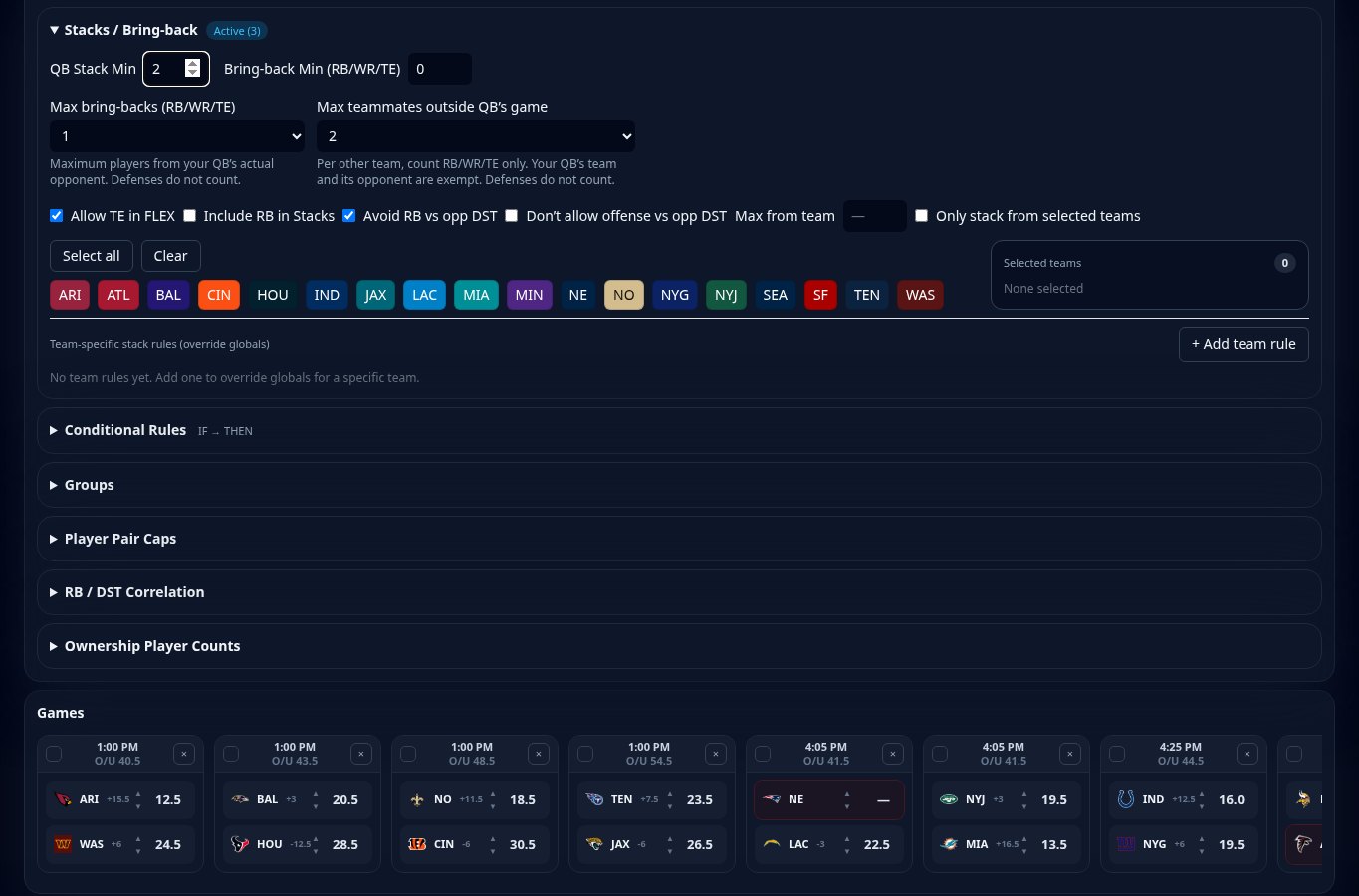
These examples are for Classic. A QB stack adds eligible teammates to the quarterback. A bring-back adds an opposing RB, WR or TE from that QB’s game. Defenses do not count. Use minimums for combinations you require and maximums to prevent more players than you intended.
| What you want | Rule to check |
|---|---|
| QB with at least two pass catchers | Set QB Stack Min to 2. If you mean WR/TE, leave Include RB in Stacks unchecked. |
| Zero or one bring-back | Leave the bring-back minimum at zero and set the maximum to one. |
| Exactly one bring-back | Set both the minimum and maximum to one. |
| Avoid three players from an unrelated team | Set Max teammates outside QB’s game to 2. It limits each other team to two RB/WR/TE players; defenses are excluded. |
For example, in a Kansas City QB stack against Atlanta, Atlanta players are bring-backs. Three Tennessee offensive players are a separate team concentration. A maximum bring-back setting will not control those Titans; the outside-QB-game team limit will.
3. Control player exposure
Exposure is how often a player appears across your build. If you request 20 lineups and want a player in no more than 10, set a maximum of 50%. A minimum of 25% requests that player in at least five of the 20. Choose a lineup count that divides cleanly when you want an exact percentage: 25% is possible in 20 lineups, but not in a five-lineup build.
Start with a global maximum if you want a broad limit, then adjust individual players where needed. Check the completed build’s counts. If fewer lineups were produced, review the completion message before treating the result as a full 20-lineup set.
A maximum is not a target: setting a player to 50% does not ask the optimizer to use them in half the lineups. Use a minimum only when you want to require exposure. Be careful combining a player lock with an exposure limit below 100%; those instructions can conflict.
4. Choose Classic or correlation mode
Classic uses your selected objective and rules. Correlation mode is an optional Classic-building setting that adjusts the score of supported player combinations. It can favor a combination without forcing it into every lineup.
Use a hard stack rule when you require a QB teammate. Use a conditional adjustment when you want that teammate to be more attractive only alongside the QB. Those are different instructions, and you can use them together.
To compare modes, keep the player pool and rules the same, save the Classic build, and rerun in correlation mode. Compare player exposures and stack shapes. Changing the rules at the same time makes it harder to tell what the mode changed.
5. Review before export
- Completion: Did the builder produce the requested lineup count? If not, read its explanation.
- Player exposures: Check counts as well as percentages, especially for locks and players near a cap.
- Teams and stack shapes: Look for team concentrations and bring-back counts you did not intend.
- Player pair analysis: Note the denominator. A pair can appear in five of 20 total lineups, but in five of a quarterback’s seven lineups. That is 25% of the build and 71.4% of the QB’s lineups.
- Sort order: Check which metric you are sorting by. The first lineup under one metric may not be first under another.
- Export: Reconfirm site, slate and roster format. Use the site-ID CSV for uploading and the detailed CSV for reviewing the data.
If you see a result you do not like, identify the rule that would prevent it. Adjust that rule and rerun. Adding several restrictions at once makes it harder to diagnose a short or failed build.
6. Check the Showdown roster roles
The same slate selector includes Classic and Showdown. Choose the site and Showdown game, then review the roster roles and salary shown in the builder. Captain/MVP and FLEX selections are not interchangeable in an export.
Use the rules available for that selected format. The QB-stack examples and correlation mode above describe Classic; do not assume every Classic control applies to Showdown. Ownership and optimal rates also depend on which game your published data covers.
Common questions
Can I use it for DraftKings and FanDuel?
Yes. Choose the site first, then a slate available for that site. Salary, roster roles and player IDs depend on that selection. Recheck it before exporting; changing the site is more than changing a salary cap.
Do I need to force a stack in correlation mode?
Only if you want a stack to be required. Correlation mode changes how combinations are scored. A boost makes a combination more competitive; it does not require the optimizer to select it. Use a stack rule for a hard requirement.
What if ownership or optimal rate is blank?
That value is not available for the selected player/slate. A blank is not zero. Check that the published ownership data covers your chosen slate before relying on an ownership-based objective or ownership rule.
Why did I get fewer lineups than I requested?
Read the build’s completion message. Locks, exclusions, salary limits, exposure caps and stacking rules can leave too few valid combinations. Check the most restrictive rules first, change one at a time, and rerun a small build.
Can I reopen a locked slate?
Yes. Locked slates remain in the dropdown when their data is available. Previously saved builds can be reviewed in the same browser. Those local saves are not a cross-device account history; clearing browser storage can remove them. A Locked label does not mean the contest accepts new entries.
Which CSV should I upload?
Use the site-ID export for the selected site and slate. The detailed export is for reviewing the lineup data. Verify the site, slate and roster format before uploading the file to your contest.
What membership do I need?
Full optimizer access requires a membership that includes NFL optimizers. The pricing page lists current access. You can view the public preview before choosing a plan.
Try the five-lineup check
Choose a slate, build five lineups with your basic rules, and review the exposures and stacks before making the build larger.
Test the build against a field
The NFL contest simulator guide explains CSV uploads, opponent-field checks, and how to read lineup versus portfolio probabilities before relying on an ROI estimate.